DJI Geofencing: Self Unlock in Seconds for U.S. Pilots

DJI Geofencing: Self Unlock in Seconds for U.S. Pilots
DJI no longer blocks most flights automatically. Since January 2025, DJI shifted its GEO system to FAA-aligned data, turning many former “restricted” zones into Enhanced Warning Zones you can self-unlock in seconds. Before you fly: check the DJI FlySafe Geo Map for your zone type, then confirm whether you also need FAA airspace authorization. Self-unlock covers most warning zones; custom unlock still applies to restricted or altitude-limited airspace.
TL;DR:
- Most warnings zones now allow self-unlock through FAA-aligned data, but pilots must verify airspace status with FAA authorization if required.
- The DJI FlySafe Geo Map guides initial zone assessment, requiring real-time updates and correct serial number entry for successful unlocking.
- Self-unlock is fast and suitable for Enhanced Warning Zones, but restricted and altitude-limited zones still need custom unlock approval with supporting documentation.
- Failures often stem from account mismatches, outdated firmware, or caching issues; quick fixes include checking serial numbers and updating software.
- An FAA authorization, such as LAANC or FAADroneZone, is still legally necessary even when DJI’s app permits flight in a zone.
Table of Contents
- What Changed in DJI’s GEO System (And Why It Matters)
- How to Read the DJI FlySafe Geo Map Before You Fly
- Self Unlock: Step-by-Step for Preflight and In-Field Use
- Custom Unlock: Preparing, Submitting, and Importing Certificates
- Why Unlock Attempts Fail (And How to Fix Them Fast)
- When You Still Need FAA Authorization Beyond DJI’s Unlock
- How an Operations Workspace Cuts Down Unlock Errors
- What Actually Matters When Everyone’s Talking About Unlocks
- A Workspace That Keeps Unlocks From Becoming a Scramble
- Sources
- FAQ
What Changed in DJI’s GEO System (And Why It Matters)
DJI updated its GEO system to pull from official FAA data, effective January 13, 2025, in the U.S., with similar shifts already underway across parts of the EU. The practical effect: zones that used to trigger a hard lock now often show up as Enhanced Warning Zones. You get a notification, not a wall.
That sounds like good news, and mostly it is. Fewer false alarms near property lines, fewer mystery blocks over a field that was never actually restricted. But the update moves legal weight onto your shoulders. DJI’s software is no longer the last word on whether a flight is allowed. The FAA is.
Here’s what shifted in practice:
- Many previously locked zones now allow self-unlock instead of requiring a custom request
- Pilots carry more responsibility for confirming airspace status independent of the app
- DJI’s in-app warnings now mirror FAA data more closely, but they still are not a substitute for an actual airspace authorization
To unlock workflows themselves (self unlock and custom unlock) have not disappeared. They still exist, and you’ll still use them regularly near airports, stadiums, and government facilities. What changed is how many zones require you to go through them at all.
How to Read the DJI FlySafe Geo Map Before You Fly
The DJI FlySafe Geo Map is where every unlock decision starts. Skipping this step is the single most common reason pilots show up to a site and can’t fly.
- Open the DJI FlySafe portal or the Geo Map inside the DJI Fly or DJI Pilot 2 app.
- Search your flight address or enter GPS coordinates directly rather than eyeballing the map.
- Toggle the layer filters: Warning, Enhanced Warning, Authorization, Restricted, and Altitude Zone. Each color code behaves differently for unlocking.
- Tap the zone to pull its Zone ID and confirm which unlock type applies to your aircraft model. Not every drone qualifies for every unlock category.
- Update your FlySafe database before you leave the office. A stale download is the second most common reason a supposedly unlocked area still shows a block on site.
Turn off Local Data Mode before attempting a live unlock. This setting caches old geozone data on the aircraft and can override the live map you just checked, which leads to confusing, contradictory results in the field.
Self Unlock: Step-by-Step for Preflight and In-Field Use
Self-unlock applies to Enhanced Warning Zones, and to some Authorization Zones when you’re connected online. It’s the fastest path and the one most pilots will use most often after the GEO update.
Preflight self-unlock:
- Log into the DJI FlySafe Self Unlock page from a computer or the mobile app.
- Verify your identity with a phone number or ID card, depending on your region’s requirement.
- Enter your flight controller’s serial number exactly as it appears on the aircraft or in the app’s device info screen.
- Select the date and time window for your flight.
- Submit, then confirm the unlock has downloaded to your specific device before you leave for the site.
In-field live unlock:
- Power on the aircraft and connect your controller or mobile device to the internet.
- Follow the in-app prompts to verify your identity again if requested.
- Enter the SMS verification code sent to your registered phone.
- Accept the flight responsibility disclaimer that appears before the unlock activates.
Live unlocks typically require an active internet connection at the moment you request them, and they’re time-limited, not permanent. Check the expiration window shown in the app before you plan a multi-hour shoot.
Pro Tip: Do your preflight self-unlock the night before a job, not in the parking lot. Cell signal at remote sites is unreliable, and a failed live unlock with a client waiting is a bad way to start a shoot.
Custom Unlock: Preparing, Submitting, and Importing Certificates
Custom unlock is for situations self-unlock can’t touch: restricted zones, altitude-limited areas, offline operations, or when you need a precise polygon carved out of a larger blocked area rather than the whole zone.
Gather your paperwork first:
- FAA Certificate of Waiver or Authorization (COA), or a local authority’s written permission letter
- PDF copies under DJI’s file size limits (oversized attachments are a common rejection reason)
- Pilot and aircraft registration details matching what’s on file with your DJI account
Then submit through the FlySafe custom unlock portal:
- Draw the exact polygon or circle covering your operating area rather than the entire flagged zone.
- Set your altitude ceiling and the date range you need. Requesting a narrower window speeds review.
- Attach your supporting documents (COA, authorization letter, registration).
- Submit and monitor the status page. DJI states most custom unlocks process in around an hour, but build in a buffer of a day or two for anything tied to a busy airspace or a holiday weekend.
Once approved, download the certificate, open your DJI app, navigate to the unlocking menu, tap refresh, then import the certificate, and toggle it on before takeoff. Keep a saved copy of the certificate on your phone and double check that the serial number and DJI account match the aircraft you’re flying. Certificates persist on the aircraft until you manually toggle them off or they expire, so review your active unlock list periodically rather than assuming it’s clean.
Why Unlock Attempts Fail (And How to Fix Them Fast)
Most unlock failures trace back to a handful of repeat offenders. DJI’s own troubleshooting guidance and community reports point to the same causes over and over.
- Account or serial mismatch: You unlocked using the wrong DJI account, or you typed the flight controller’s serial number wrong. Double check it against the app’s device info screen, not a saved note.
- Local Data Mode is on: This blocks the aircraft from pulling live geozone updates and can override an unlock you just completed.
- Outdated firmware or app version: FlySafe updates roll out alongside app updates. An old build can misread zone data entirely.
- Certificate not imported or not toggled on: Approval isn’t the same as activation. You still have to import and enable it.
- Connectivity or firewall issues: Corporate Wi-Fi and some VPNs block the download. Try cellular data if a downloaded certificate won’t sync.
- No GPS lock: Some unlock verifications require a GPS fix before they’ll activate, especially indoors or near tall structures.
If a certificate still won’t import after two tries, switching to a different mobile device (iOS to Android, or over to a CrystalSky controller) often clears whatever local sync glitch is blocking it.
Pro Tip: When you contact DJI support, have your flight controller serial number, DJI account email, and a screenshot of the exact error message ready. Vague tickets get vague answers.
When You Still Need FAA Authorization Beyond DJI’s Unlock
A DJI unlock is not a legal authorization. That distinction trips up more pilots than any technical glitch. DJI’s app tells you what your drone will let you do; the FAA decides what you’re legally allowed to do.
LAANC delivers near-real-time authorizations at many airports through FAA-approved UAS Service Suppliers, and it’s the fastest legitimate path when it’s available at your location. You’ll request it through a USS app rather than directly from the FAA, and even with an approved LAANC authorization, you still need to check NOTAMs and temporary flight restrictions separately.

For airports without LAANC coverage, or for requests above the ceiling on the UAS Facility Map, FAADroneZone handles manual airspace authorizations. You can apply well ahead of your planned flight, and manual review takes longer than LAANC’s near-instant turnaround, so build that lead time into your scheduling.
A practical workflow:
- Check the UAS Facility Map and current NOTAMs before anything else.
- Request LAANC if your location shows coverage.
- File a FAADroneZone request if LAANC isn’t offered or your altitude exceeds the facility map ceiling.
- Keep a copy of any FAA authorization alongside your DJI unlock documentation. Some custom unlock reviewers ask for it directly.
How an Operations Workspace Cuts Down Unlock Errors
Most unlock failures come down to mismatched details: the wrong serial number, an expired certificate nobody remembered to renew, a missing FAA authorization filed in someone’s email instead of on the job. Flydronable’s SkyScore™ checks airspace status and flags account or credential mismatches before you’re standing on site discovering them the hard way. Storing your Drone Passport credentials, unlock certificates, and FAA authorizations in one workspace means you’re not hunting through screenshots and downloads folder chaos ten minutes before a job starts.
What Actually Matters When Everyone’s Talking About Unlocks
Pilots love to argue about whether DJI “removed” geofencing. It didn’t. It reclassified risk and handed more of that risk to you. That’s the part conventional wisdom on drone forums keeps getting backwards. The interesting shift isn’t technical, it’s about accountability. Skipping a FAA check because the DJI app didn’t complain is no longer a defensible excuse, and honestly, it never fully was. My priority order stays simple: confirm regulator status first, run the FlySafe check second, handle device prep last. Get that sequence backwards and you’re gambling with a citation, not just a failed unlock.
— Brent
A Workspace That Keeps Unlocks From Becoming a Scramble
Unlike juggling the DJI FlySafe portal, a separate FAA DroneZone login, and a folder of PDFs on your phone, Flydronable keeps your credentials, unlock certificates, and airspace checks in one place you actually control. Its SkyScore™ tool flags account and serial mismatches before they cost you a wasted trip, and Drone Passport stores your certifications and unlock records so you’re not digging through email threads on site.
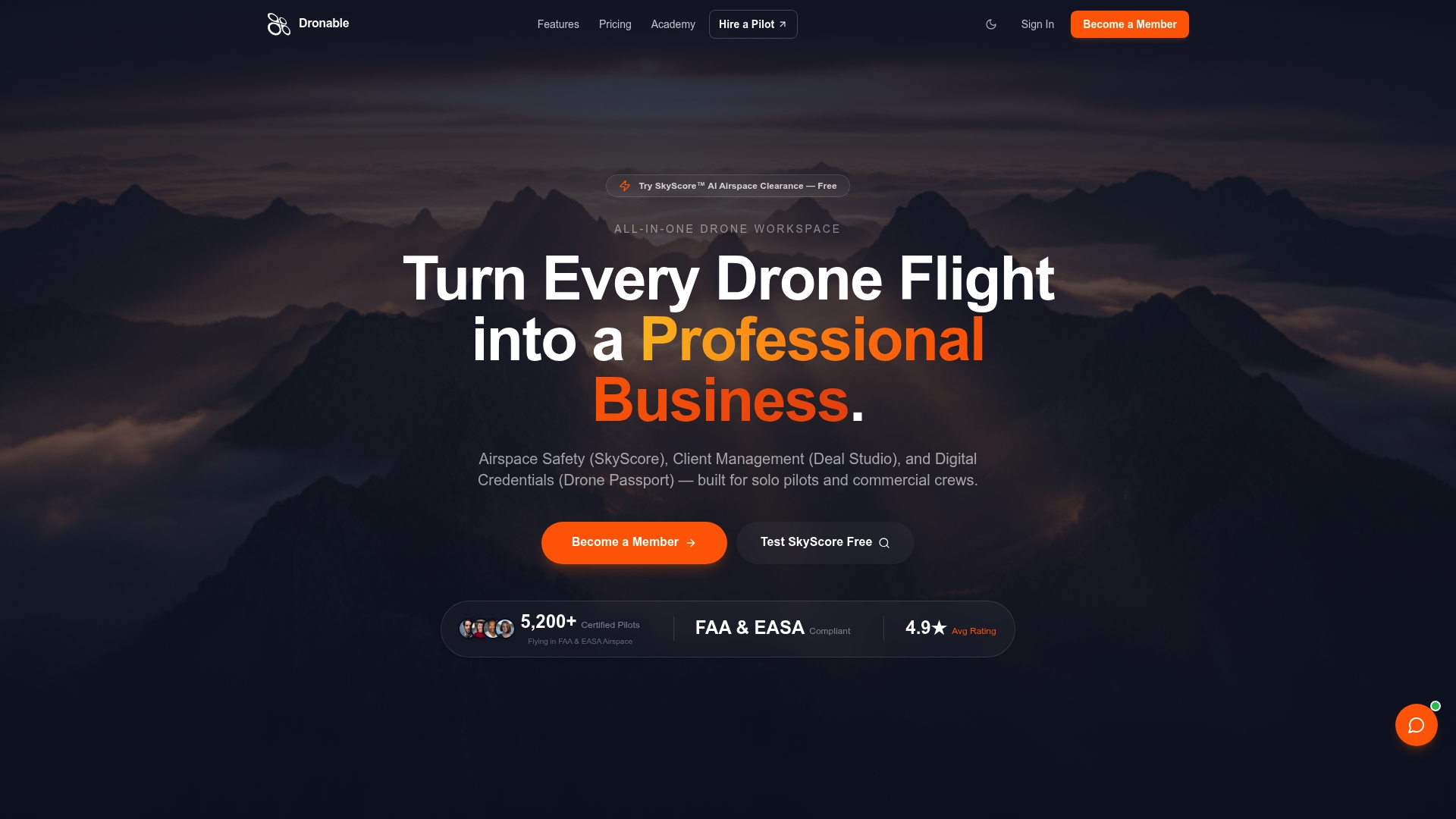
For pilots who fly commercially and need this handled every time, not just remembered occasionally, the Pilot Pro plan at $24.99 a month unlocks the full compliance toolkit alongside client management features. Hobbyists testing the waters can start with the Starter plan at $9.99 a month. Check the membership page and pick the tier that matches how often you’re actually flying jobs, not just weekends.
Sources
- Unlocking a GEO Zone on Your DJI Drone — DJI Support
- LAANC — Low Altitude Authorization and Notification Capability — FAA
- How to unlock a GEO Zone on your DJI drone — DJI Enterprise Insights
FAQ
Does the FAA know if you fly above 400 feet?
The FAA doesn’t track altitude in real time for most recreational flights, but exceeding altitude limits near controlled airspace without authorization is a regulatory violation the FAA can pursue after the fact through complaints, radar data, or witness reports. Altitude limits and the need for authorization near controlled airspace exist independent of whether anyone catches you in the moment.
How do you unlock a locked DJI drone?
Open the DJI FlySafe Geo Map to identify whether the zone is a self-unlock or custom-unlock area. Self-unlock works through the app with identity verification and an SMS code, while custom unlock requires submitting documents through the FlySafe portal and importing the approved certificate to your aircraft.
Why did DJI remove geofencing?
DJI didn’t remove geofencing. It updated the GEO system to align with FAA data, reclassifying many restricted zones as Enhanced Warning Zones that pilots can self-unlock rather than zones that block flight outright. The change shifts more compliance responsibility onto the pilot instead of removing oversight entirely.
Why does DJI say “unable to unlock geo zone”?
This error usually points to a mismatched DJI account or flight controller serial number, an outdated app or firmware version, or Local Data Mode overriding live zone data. Checking common troubleshooting causes like connectivity and cached data resolves most cases without contacting support.
What’s the difference between self unlock and custom unlock?
Self-unlock applies to Enhanced Warning Zones and some Authorization Zones, and it processes almost instantly through identity verification in the app. Custom unlock is required for restricted zones, altitude-limited areas, or precise polygons, and it requires document submission with DJI aiming for roughly an hour turnaround, though complex requests can take longer.
Does unlocking a DJI drone mean I’m legally cleared to fly?
No. A DJI unlock only removes the software block. You still need FAA airspace authorization through LAANC or FAADroneZone when flying in controlled airspace, regardless of what the DJI app allows.
Explore Dronable Tools
Deepen Your Knowledge
Get step-by-step video courses in the Dronable Academy — FAA Part 107, EASA, real estate drone photography, and more.
Browse CoursesFree: How to Start a Drone Business
The complete step-by-step guide to turning your passion for flying into a profitable drone business — completely free.
- 10 steps to launching your drone business
- 51 proven drone business ideas
- How to get FAA certified (Part 107)
- Pricing, clients & recurring income
Join the Dronable Newsletter
Get drone tips, new articles, and exclusive deals straight to your inbox. No spam, unsubscribe anytime.


